01
Choose an EA
Explore available strategies and review the EA details, supported markets and risk level.
Discover EA strategies, compare risk and broker compatibility, then choose the EA that fits your trading style.
Demo testing is free for every broker in our list. Verify your MT5 account and the EA download unlocks.




Explore selected strategies designed for different markets, trading styles and risk preferences.
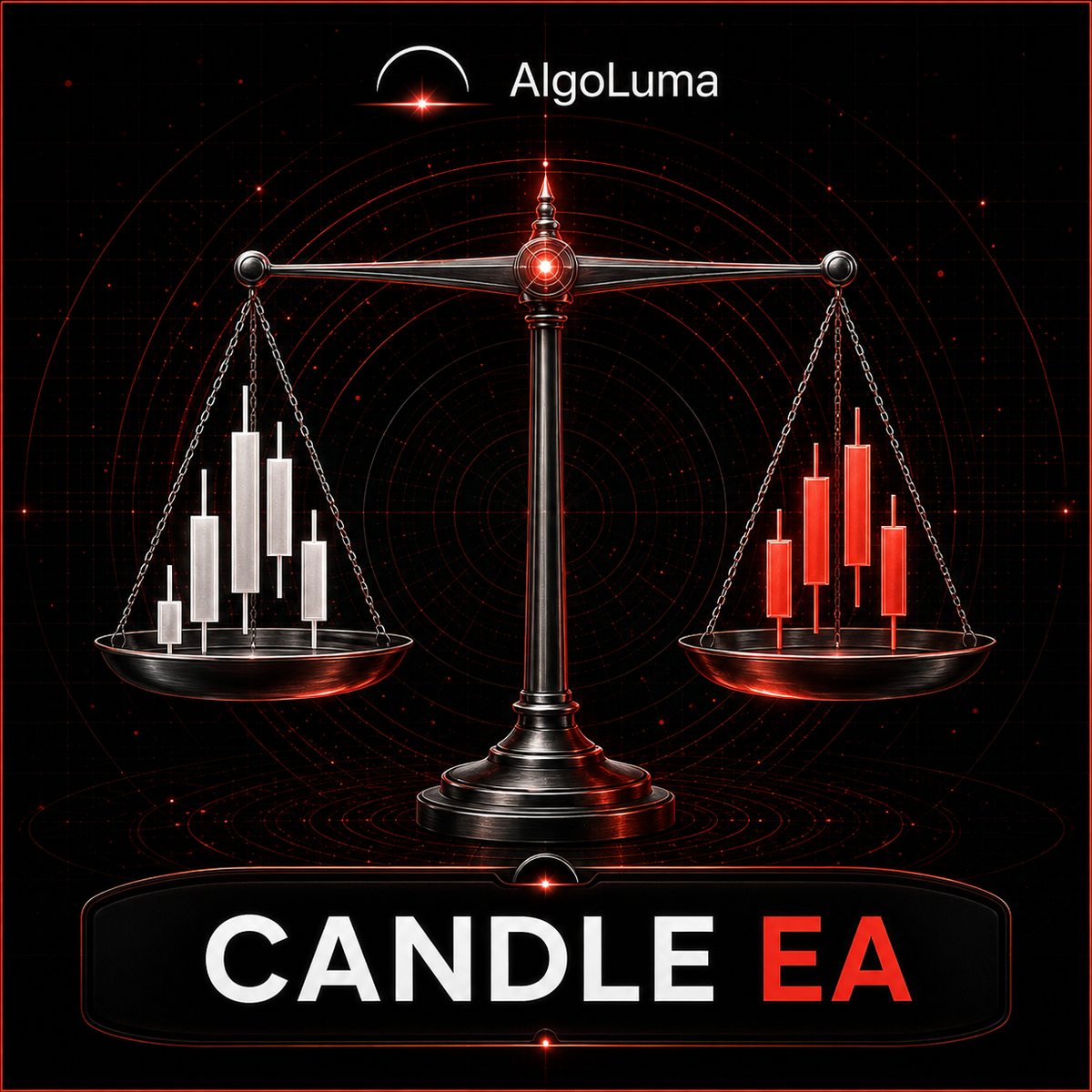
Candlestick pattern EA that weighs bullish against bearish setups before entering.
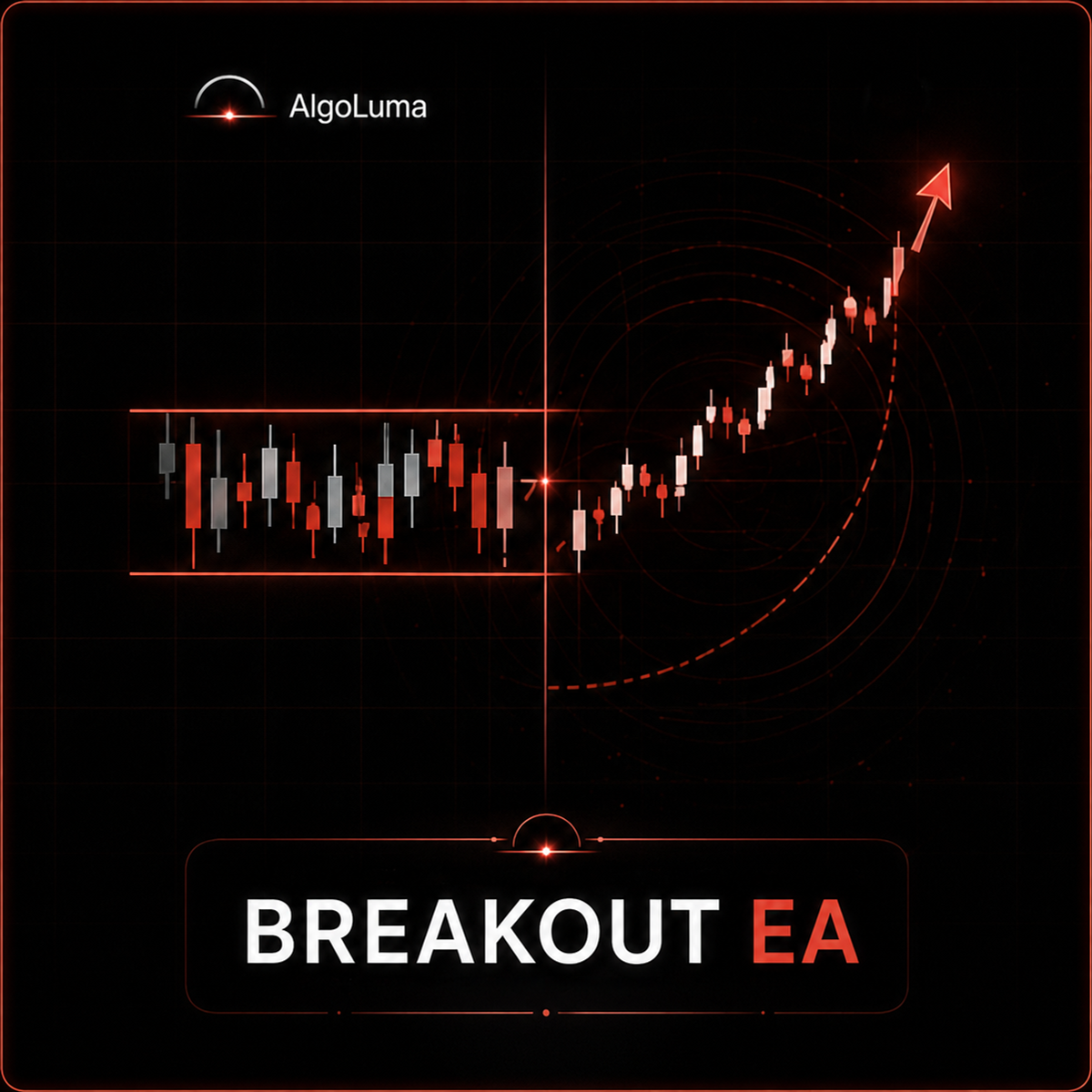
Trades range breakouts on MetaTrader 5 with a defined stop and trailing exit.
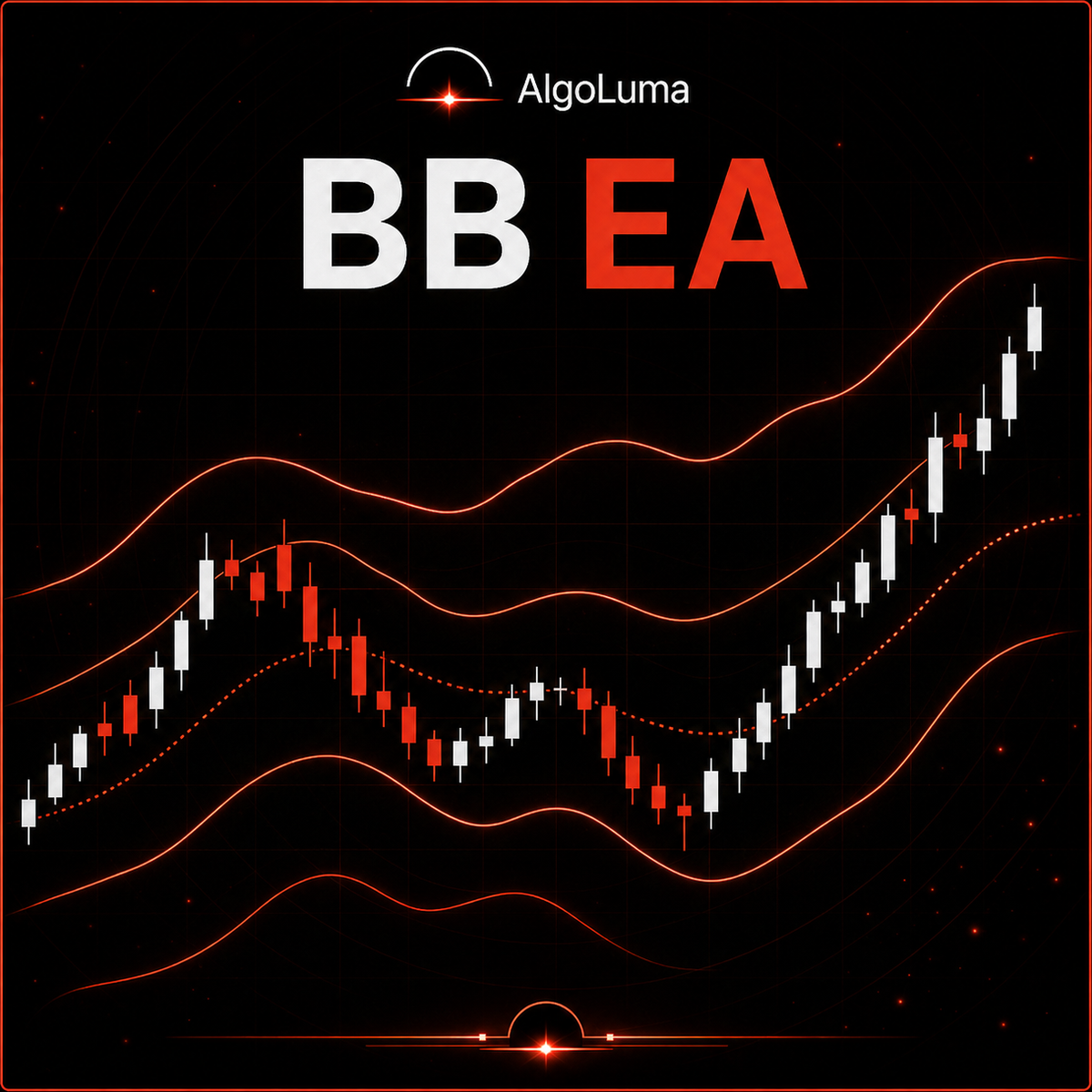
Bollinger Bands mean-reversion EA that fades stretched moves back toward the middle band.
Every EA lists its strategy, symbol, timeframe and intended market.
See which brokers and MT5 servers each EA is prepared for.
Compare risk level, recommended capital and maximum drawdown.
Files are delivered through signed, single-use download links.
Follow a guided MetaTrader 5 setup from download to Algo Trading.
Ask our team about verification, downloads or installation.
MT5 demo servers across global sessions
Explore selected EAs in a controlled demo environment before considering live use. Review the strategy, settings and risk without using real funds.
Demo Account OnlyTest this EA on a supported MT5 demo account and explore how the strategy behaves under different market conditions.
Demo performance may differ from live-market results due to execution, spreads, liquidity and market conditions.
These EAs run on a live MT5 account and are kept separate from the demo library above. Open an account with one of the partner brokers below, then contact support to request access.

Multi-timeframe strategy for live MT5 accounts. Confirms entries across several timeframes before trading.
Open a live MT5 account to run AlgoLuma Multi Timeframe.
Open a live MT5 account to run AlgoLuma Multi Timeframe.
AlgoLuma acts as an introducing broker for these brokers and may receive a commission from accounts opened through these links. Live trading carries risk, and demo results do not guarantee future performance.
Explore available strategies and review the EA details, supported markets and risk level.
Pick any broker from the supported list — every one of them works the same way.
Send your MT5 account number and server so our team can confirm broker compatibility.
Once all requirements are completed, your EA download will be unlocked.
EA availability and compatibility may vary depending on your broker, account type and MT5 server.
Every broker above gets the same access. Finish MT5 verification once and the EA download unlocks, whichever broker you trade with.
Send us your broker and server details. Our team will review compatibility and notify you when an update is available.
Follow these instructions to install and activate your EA on MetaTrader 5.
Download the EA file from the My EAs page.
Open MetaTrader 5 and select File → Open Data Folder.
Move the EA file to MQL5 → Experts.
Close and reopen MT5 to refresh the EA list.
Open the recommended symbol and timeframe, then attach the EA to the chart.
Enable Algo Trading and confirm that the EA is running correctly.
EAs cannot run directly on the MT5 mobile application. Keep the MT5 desktop terminal connected, or use a VPS if continuous operation is required.
Yes. Every broker in the supported list can be used for EA testing on an MT5 demo account once your MT5 account is verified.
Your MT5 account number and server are used only to verify broker eligibility and compatibility.
No. AlgoLuma will never ask for your MT5 trading password.
Please check the individual EA details. Some EAs may be available for demo testing only.
Yes. Available EAs can be downloaded again from the My EAs page.
A VPS is recommended if you want your EA to operate continuously without keeping your computer turned on.
No. Trading involves risk, and past performance does not guarantee future results.
Need help with verification, downloading or installation? Send us a message and our support team will assist you.
Chat with our support team.
Our team will respond as soon as possible during support hours.